
Women's Safety App: How a Background Video Recorder Helps Document Harassment
Safety first
No app can protect you. If you feel in danger, move to a safe place and call for help. Don’t confront anyone to keep recording. Record only where the law allows it, and never use any recorder to follow, harass or spy on someone.
Harassment is hard to prove. It often happens fast, in crowded or lonely places, with no witnesses, and the person affected is usually too busy staying safe to take out a phone and film. When a complaint is made later, it can come down to one person’s word against another’s.
A background video recorder can help close that gap. Off Screen Video Recorder is a free Android app that records video and audio with the screen off, so you can start a recording quickly and keep your phone in a hand, bag or pocket. This guide covers where it can help, which features matter most, and how to use it responsibly.
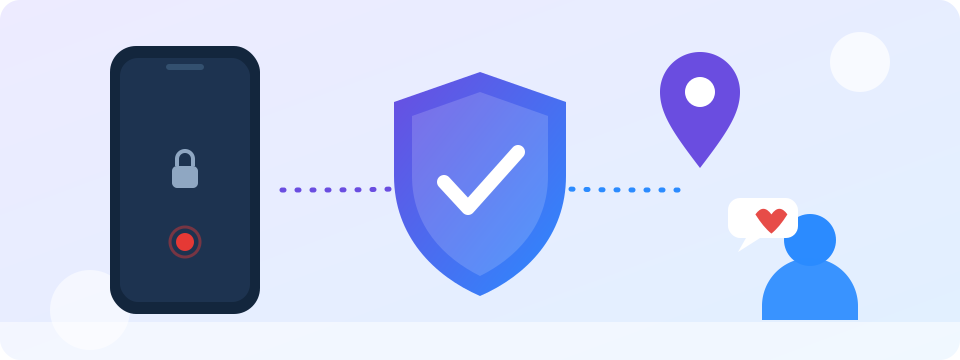
Real-life scenarios
The scenarios below are examples of situations women describe. They are illustrative, not real cases.

Scenario 1: A crowded bus ride
A student is on a packed bus when the person behind her keeps pressing against her. She can’t turn around or take out her phone without making things worse. Before the bus gets busy, she taps the Quick Settings tile to start recording, then puts her phone in her bag with the screen off. The app records video and audio, and the GPS stamp adds the address and coordinates to the video. When she reaches her stop, she stops the recording and keeps the clip.
Scenario 2: A walk home after dark
A woman notices someone following her from the station. She starts recording from the app-icon shortcut and keeps walking toward a busy shop. She calls someone she trusts, and uses the volume keys to switch to the rear camera without looking at her screen. The video shows the street and the location stamp.
Scenario 3: Inappropriate behaviour at work
An employee has been receiving comments from a senior colleague during one-to-one meetings. Where her local law and her workplace’s rules allow it, she starts a recording before the next meeting and keeps the phone on the desk. She later writes down the date, time and what was said, and uses the clip together with her notes in a complaint to HR.
Scenario 4: A field visit alone
A health worker visits homes in an area she doesn’t know. At one visit, the client becomes aggressive. She started recording at the door, so the location stamp shows where she was, and the video shows how the visit went. For long shifts, she saves videos in segments, so a single damaged file won’t lose the whole day.
Scenario 5: A taxi or ride-share trip
A passenger feels uneasy when her driver takes an unusual route. She records the trip with the screen off and shares the clip with a family member when she gets home.
Scenario 6: Repeated stalking by someone she knows
A woman is being followed and contacted by a former acquaintance. Each time, she records the incident. Later she merges the clips into one timeline and trims each one to the key moment, then gives it to a lawyer or the police along with her written notes.
Why this app can help
- It works with the screen off. There’s no bright display, and the phone stays out of the way.
- It starts fast. One tap on the Quick Settings tile or the app-icon shortcut, when seconds matter.
- It saves battery. A dark screen means longer recording.
- It records the place. The live GPS stamp puts the address and coordinates on the video.
- It’s private. A fingerprint or PIN lock keeps other people out of your recordings.
- It’s free to start. The free plan records up to 5 minutes per video. Premium removes the limit.
Key features that matter in these situations
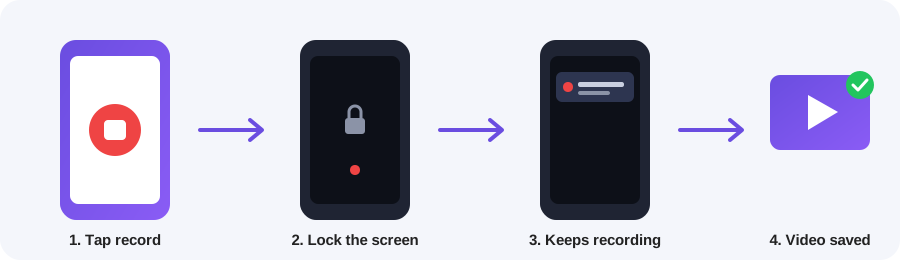
1. Record video with the screen off
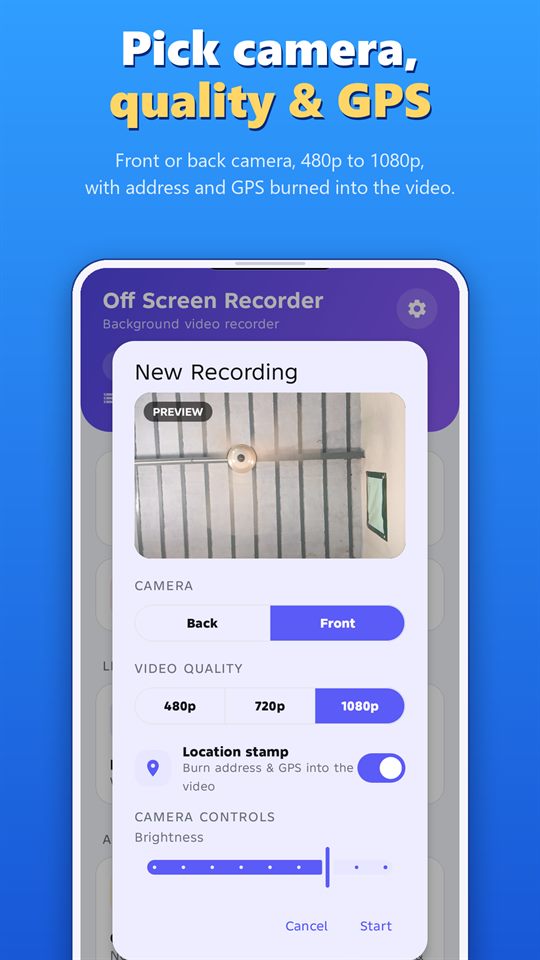
Start a recording, lock your phone or switch to another app, and the video keeps recording in the background. Choose the front or back camera, and 480p, 720p or 1080p.
2. Volume-key camera switch
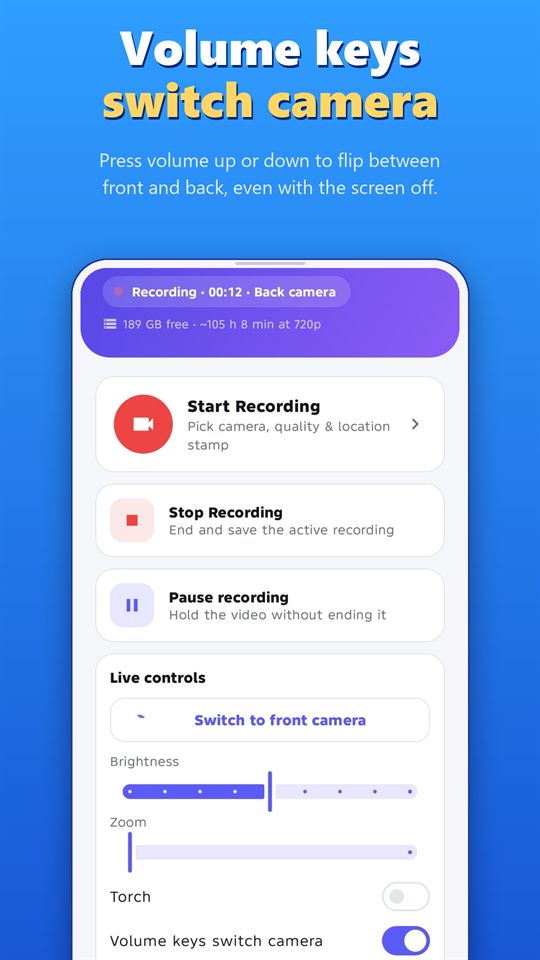
Press the volume buttons to flip between the front and back camera, even with the screen off. This lets you change what you capture without looking at the display. You can turn it on or off from the live controls.
3. Quick Settings tile and app-icon shortcut
Start and stop recording in one tap, without opening the app. It uses your last camera, quality and location choices.
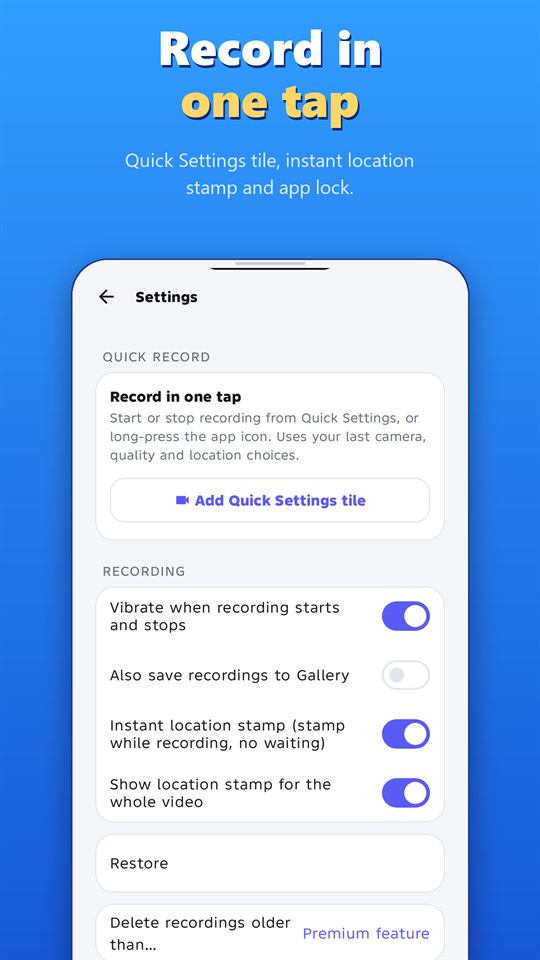
4. Instant GPS location stamp
The address and coordinates are drawn onto the video while you record. There’s no processing step afterwards, so the clip is ready as soon as you stop.
5. Notification controls
Pause, switch camera or stop from the notification bar, without opening the app.
6. Live camera controls
Adjust brightness, zoom, torch and mute while recording. The torch helps in dark places, and zoom helps when you need to capture something at a distance.
7. Merge, trim and share
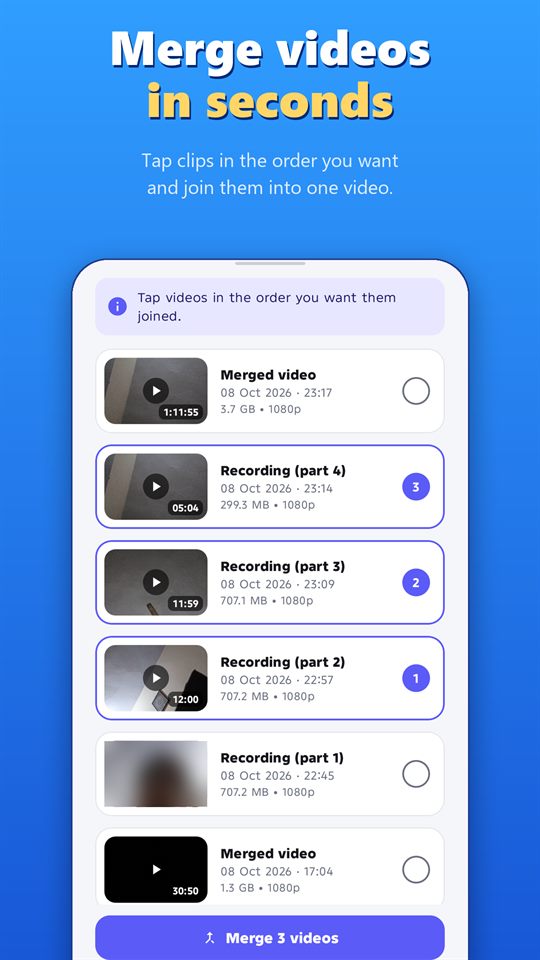
Join several clips into one video, cut a clip to the key moment, and share it with a trusted person, HR or the police.
8. App lock and storage tools
Keep your videos private with a fingerprint or PIN. Use segmented recording, auto-delete and the low-storage warning to manage long recordings.
Practical tips
- Test the app first. Do a trial run so you know how to start and stop it without thinking.
- Add the Quick Settings tile and keep it in your top row.
- Charge your phone before travelling, and keep some storage free.
- Write notes straight after an incident: date, time, place, people, and what was said or done.
- Back up important clips to a trusted person or cloud storage quickly.
- Tell someone you trust where you are, especially on night travel.
- Keep your phone secure, so nobody else can open your videos.
- Know your local emergency numbers and save them in your phone.
Where to get help
If you need help
- In an emergency, call your local emergency number for the police or an ambulance.
- Look up your country’s helpline for women, and for harassment or abuse, and save it in your phone.
- Tell someone you trust where you are and what happened.
Emergency numbers and support services differ from country to country. Find the right ones for where you live, and save them before you need them.
Be clear about the limits
- Android shows a recording notification while the app records, and the app can’t hide it. It’s easy to miss with the screen off, but someone looking at your phone could see it.
- Recording laws differ by country and region. In some places, recording a conversation needs everyone’s consent. In others, you can record a conversation you are part of. Check your local rules or ask a lawyer.
- A video may not decide a case alone. It’s strongest with written notes, messages, witnesses and a formal report.
- The app doesn’t contact anyone for you. It is a recording tool, not an alarm. For emergencies, call your local emergency number.
- Use the app responsibly. Only record where it’s legal. Don’t record people in private places such as changing rooms or toilets, and don’t use it to harass or spy on others.
Frequently asked questions
Is it legal to record harassment?
It depends on where you are. In some places, recording a conversation needs everyone's consent. In others, you can record a conversation you are part of. Check your local rules or ask a lawyer before you rely on a recording.
Does the app work with the screen off?
Yes. Start a recording, lock your phone or switch to another app, and the video keeps recording in the background.
Can other people see that it is recording?
Android shows a recording notification while the app records, and the app can't hide it. It is easy to miss with the screen off, but someone looking at your phone could see it.
Will a video be accepted as evidence?
A video may not decide a case on its own. It is strongest with written notes, messages, witnesses and a formal report. What a court or employer accepts depends on the law and the case.
What should I do if I feel in danger?
Move to a safe place and call for help using your local emergency number. Don't confront anyone to keep recording.
Is the app free?
Yes. The free plan records up to 5 minutes per video. Premium removes the limit.
More guides for Off Screen Video Recorder
- How to Record Video with the Screen Off on Android
- Record Lectures and Meetings with Consent
- Dash Cam Style Recording with Your Phone
- GPS-Stamped Videos for Inspections and Deliveries
- How to Merge and Trim Videos on Android
- One-Tap Recording: Quick Settings Tile and Volume Keys
Get started
- Install Off Screen Video Recorder from Google Play.
- Accept the consent notice and allow camera, microphone and location access.
- Add the Quick Settings tile from the app’s Settings.
- Do a test recording with the screen off, then check the video.
Published on Google Play by Safe Vision. Read the privacy policy. More about the app: Off Screen Video Recorder.
Stay safe, and trust your instincts.