
How to Record Video with the Screen Off on Android: Setup and Battery Tips
Most camera apps stop recording as soon as you lock your phone. A background video recorder keeps the camera running with the screen off, so you can save battery and keep using your phone. This guide shows how to set it up with Off Screen Video Recorder, and what to do if a recording stops.
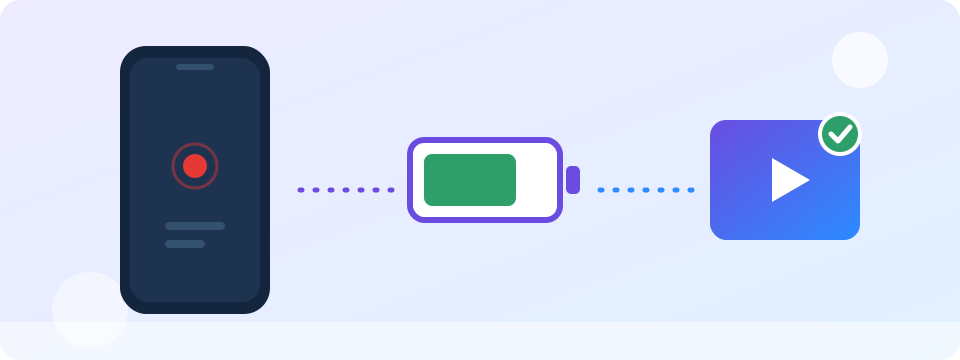
Set it up in four steps
- Install the app from Google Play and open it.
- Accept the consent notice and allow camera and microphone access. Allow location too if you want the GPS stamp.
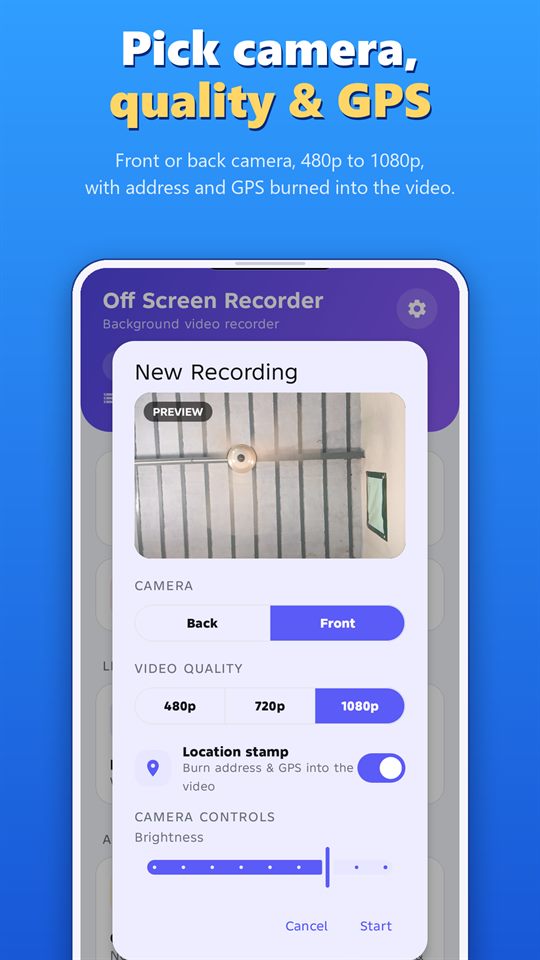
- Tap Start Recording, pick the front or back camera and the quality, then tap Start.
- Lock your phone or switch to another app. The recording keeps going until you stop it.
A notification stays visible during the whole recording. You can pause, switch camera or stop from it without opening the app.
If recording stops by itself
Phone makers add their own battery rules, and the settings have different names on each phone. If a recording stops after a while, check these in turn:
- Background and battery settings. Look for the app’s battery or background-activity setting in your phone’s system settings, and choose the option that lets it run without restrictions.
- Battery saver. Turn it off while you record, or allow the app to run in the background.
- Storage. A full phone cannot save video. The app warns you when storage is low.
- Closing the app. Don’t swipe the app away while it records. Stop it from the notification or the app instead.
Save battery while you record
- Keep the screen off. A dark screen is the biggest saving.
- Choose a lower quality for long recordings. Higher quality uses more battery and storage.
- Turn the location stamp off when you don’t need it.
- Charge your phone before a long recording, or keep it plugged in.
Check your storage
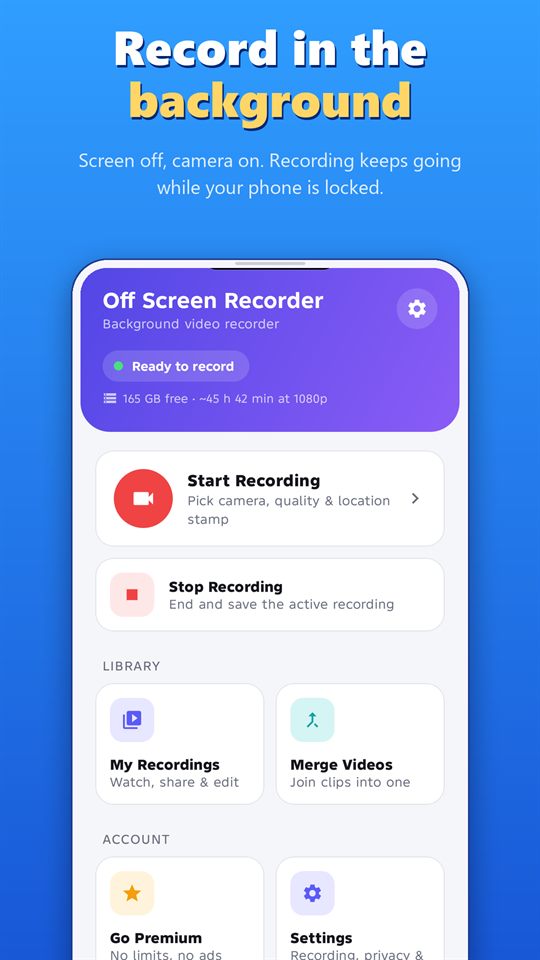
The home screen shows how much space is free and roughly how long you can record at the current quality. For long sessions, use segmented recording so the video is saved in parts, and a single damaged file doesn’t lose everything.
Test before you rely on it
Do a one-minute test with the screen off. Then play the video back and check the picture, the sound and the length. Do this on the same quality and camera you plan to use.
Record responsibly
Record only where it is legal, and with the consent of the people being recorded where the law or good manners require it. Laws differ by country and region. Android shows a notification while the app records, and the app can’t hide it. Never use any recorder to follow, harass or spy on someone.
Frequently asked questions
Can I use other apps while it records?
Yes. Start a recording, then lock the screen or switch to another app, and the recording continues in the background.
Does it record sound?
Yes. You can mute the microphone while recording.
Is there a time limit?
The free plan records up to 5 minutes per video. Premium removes the limit.
Can other people tell it is recording?
Android shows a recording notification while the app records, and the app can't hide it. It is easy to miss with the screen off, but someone looking at your phone could see it.
More guides for Off Screen Video Recorder
- Record Lectures and Meetings with Consent
- Dash Cam Style Recording with Your Phone
- GPS-Stamped Videos for Inspections and Deliveries
- How to Merge and Trim Videos on Android
- One-Tap Recording: Quick Settings Tile and Volume Keys
- Women's Safety App: How a Background Video Recorder Helps Document Harassment
Download
Get the free Off Screen Video Recorder on Google Play.
Published on Google Play by Safe Vision. Read the privacy policy. More about the app: Off Screen Video Recorder.