
One-Tap Recording: Quick Settings Tile, App Shortcut and Volume Keys
Sometimes you need to start recording quickly, without opening the app and tapping through menus. Off Screen Video Recorder gives you several fast ways: a Quick Settings tile, an app-icon shortcut, notification buttons and volume keys. This guide shows how to set each one up.

Add the Quick Settings tile
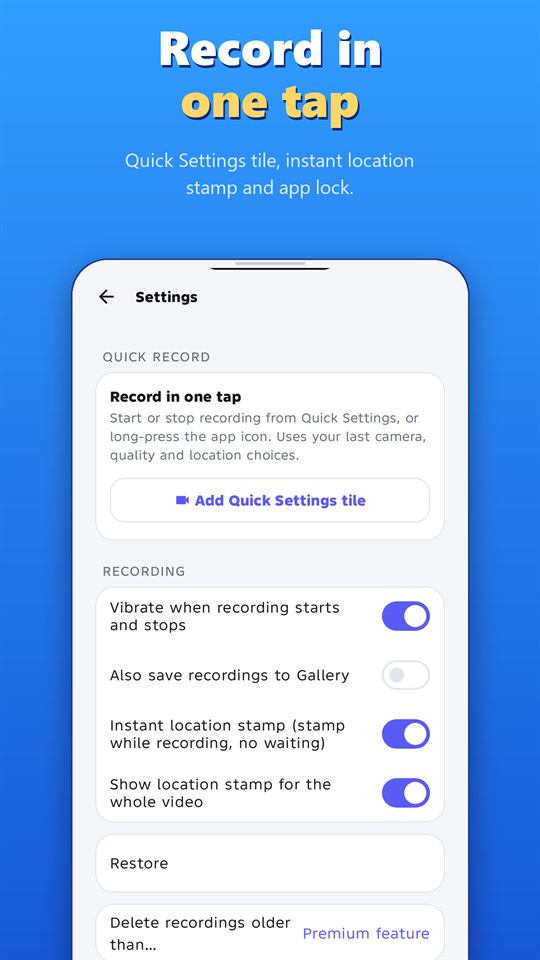
- Open the app and go to Settings.
- Under Quick record, tap Add Quick Settings tile.
- Pull down your phone’s quick settings panel and move the tile near the top, so it is easy to reach.
One tap on the tile starts or stops recording, using your last camera, quality and location choices.
Use the app-icon shortcut
Long-press the app icon on your home screen to start or stop recording from the shortcut menu, without opening the app.
Control it from the notification
While a recording runs, the notification has buttons to pause, switch camera or stop. You don’t need to open the app.
Switch cameras with the volume keys
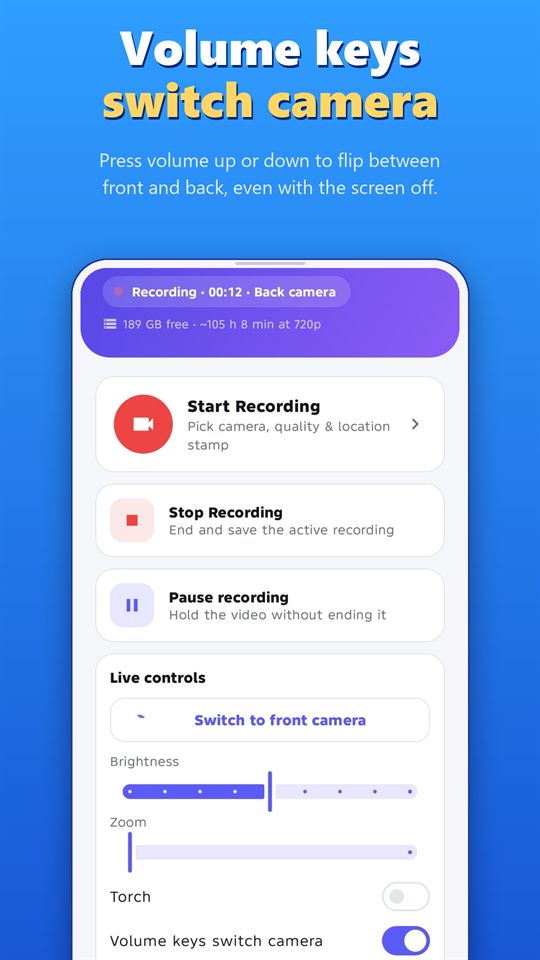
Turn on Volume keys switch camera in the live controls. Then press volume up or down to flip between the front and back camera, even with the screen off. You can change the view without looking at the display.
Practise before you need it
- Do a dry run of starting, switching and stopping until it feels natural.
- Turn on Vibrate when recording starts and stops, so you can feel that it worked.
- Check the first clip afterwards to be sure it recorded what you expected.
Use fast controls with care
Fast controls make recording easy, so use them carefully. Record only where it is legal and with the knowledge of the people being recorded where the law or good manners require it. Android shows a notification while the app records, and the app can’t hide it.
Record responsibly
Record only where it is legal, and with the consent of the people being recorded where the law or good manners require it. Laws differ by country and region. Android shows a notification while the app records, and the app can’t hide it. Never use any recorder to follow, harass or spy on someone.
Frequently asked questions
Does the tile use my last settings?
Yes. One-tap recording uses your last camera, quality and location choices.
Can I switch cameras without looking at the screen?
Yes. With the volume-key option on, press volume up or down to flip between front and back, even with the screen off.
Can I pause from the notification?
Yes. The notification has pause, switch camera and stop buttons.
Can others see the notification?
Yes. Android shows a recording notification while the app records, and the app can't hide it.
More guides for Off Screen Video Recorder
- How to Record Video with the Screen Off on Android
- Record Lectures and Meetings with Consent
- Dash Cam Style Recording with Your Phone
- GPS-Stamped Videos for Inspections and Deliveries
- How to Merge and Trim Videos on Android
- Women's Safety App: How a Background Video Recorder Helps Document Harassment
Download
Get the free Off Screen Video Recorder on Google Play.
Published on Google Play by Safe Vision. Read the privacy policy. More about the app: Off Screen Video Recorder.